
Importing Notes
Bring content in from other apps as a one-time import. Imports create new notes (or tasks) in your vault; your original export files are never modified.
Open Settings → Import to see the available sources. Every source shares the same flow: click Import next to a source, choose your export file(s), and watch the live progress. Some sources (such as Todoist and CSV) first show a preview — counts, sample titles, and any warnings — so you can review what will be imported before committing. You can Cancel a running import at any time.
Each importer writes into its own top-level folder (Notion/, Bear/, Evernote/, …) so sources never collide, and imports are additive — running an import again creates new notes rather than updating existing ones.
Progress lines, preview warnings and import errors are shown in your selected language.
| Source | Export format | Creates | Details |
|---|---|---|---|
| Notion | HTML export .zip | Notes | Notion |
| Markdown | .md files / folder | Notes | Markdown |
| NotePlan | NotePlan data folder / backup | Notes, Journal, Tasks | NotePlan |
| HTML | .html / .htm files | Notes | HTML |
| Evernote | .enex export | Notes | Evernote |
| Bear | .bear2bk archive | Notes | Bear |
| Apple Notes | NoteStore.sqlite (macOS) | Notes | Apple Notes |
| Google Keep | Google Takeout .json / .zip | Notes | Google Keep |
| Roam Research | Graph .json export | Notes | Roam |
| Apple Journal | HTML export | Notes | Apple Journal |
| CSV | .csv file | Notes | CSV |
| OneNote | Microsoft Graph (account) | Notes | OneNote |
| Raindrop | Bookmark CSV .csv | Inbox | Raindrop |
| Todoist | Project CSV .csv | Tasks | See Import from Todoist |
| TickTick | Backup CSV .csv | Tasks | See Import from TickTick |
Checklists Become Tasks
A note you import that contains checkboxes brings its checklist across as real tasks, not just text. - [ ] Pack bags becomes an open task and - [x] Book hotel becomes a completed one, each linked back to the note it came from. Previously these stayed plain text until you opened the note and edited it, one checkbox at a time.
- A checkbox indented directly under another checkbox becomes its subtask. Only one level deep; anything nested further becomes its own task.
- Where they land: your default project from Settings → Tasks, or your Inbox if you have not set one. The lines keep their place and indentation in the note.
- What is left alone: checkboxes inside code blocks, lines that are already Memry tasks, and Obsidian Tasks lines carrying a block link, an
🆔id or a⛔dependency. Obsidian Tasks due dates, priorities and recurrence are read onto the task. - Only new imports. Notes you imported before this existed keep their plain checkboxes; open one and edit a checkbox to convert it.
NotePlan is the exception: its + checklist lines stay plain checkboxes on purpose — see NotePlan.
If a task cannot be created, that one line simply stays a checkbox and the rest of the import continues.
Dropping Files onto the Sidebar
For a handful of files, skip Settings → Import entirely: drag them from Finder or Explorer straight onto the sidebar. They are copied into your vault, so the originals can be moved or deleted afterwards without breaking anything.
Where they land is where you drop them:
| Drop target | Destination |
|---|---|
| A folder row | That folder |
| A note or file row | The folder that note lives in |
| Empty space | Your vault root (or your default note folder, if set) |
Whatever is currently selected in the sidebar makes no difference — only the drop position counts. While you drag, the target folder is outlined and named at the bottom of the sidebar, so you can confirm the destination before letting go.
A name collision never overwrites: a second report.pdf becomes report (1).pdf.
Unsupported file types are skipped rather than failing the whole drop; the supported extensions are listed in the sidebar while you drag. To attach a file inside a note instead of adding it to the vault, drop it onto the editor — see Attachments.
Adding Files to the Vault Folder
Your vault is an ordinary folder, so you can also copy files into it with Finder, Explorer, git, or a sync tool. Memry picks up changes while it is running, and on the next launch it catches up on anything that changed while it was closed.
What Memry reads:
| Type | Extensions |
|---|---|
| Notes | .md |
.pdf | |
| Images | .png, .jpg, .jpeg, .gif, .webp, .svg |
| Audio | .mp3, .wav, .ogg, .m4a, .flac, .aac |
| Video | .mp4, .webm, .mov, .avi, .mkv |
| Canvases | .excalidraw (in the canvases folder) |
What Memry leaves alone:
- Any other file type (
.docx,.xlsx,.epub, …). The file stays in the folder untouched, but it does not appear in the sidebar or in search. Each one is listed once in Vault Activity as skipped. - Hidden files and folders, whose names start with a dot.
- The
attachmentsfolder, which holds files embedded in notes. - Folders named in the vault's exclude list (
.git,node_modules,.trash,.obsidianby default).
Do not edit .memry/. That hidden folder holds the vault's databases, settings, and activity log. Everything else in the vault folder is yours to add, move, rename, and delete.
Vault Activity
The messages that appear while Memry picks up files are gone after a few seconds. Settings → Vault → Activity keeps a record you can read afterwards:
- Added / Removed / Renamed — a file that appeared in, disappeared from, or was renamed in the vault folder outside Memry.
- Skipped — a file Memry does not read, named with its extension.
- Failed — a file that could not be read or added, a sidebar drop that could not be copied, or a file or note that could not sync.
- Import — one line per import run with its counts. Expand it to see which items failed or were skipped, and why.
- Found changes made while Memry was closed — a summary when the launch-time catch-up found many new files at once.
- Search index built — Memry read the whole vault from scratch: the first time a folder is opened, or after the index had to be rebuilt.
The record stays on this device and is never synced. It is also written to .memry/activity.jsonl, one JSON entry per line; Show log file opens its folder. Entries are kept for 30 days by default (7 and 90 are available), and Clear empties the log. Error messages about sync offer a Details button that opens this list.
Importing from Notion
memrynote imports a Notion HTML export (not the Markdown or CSV export).
1. Export from Notion
In Notion, open the workspace or page you want to move, choose Export, and pick:
- Export format: HTML
- Include content: Everything
- Include subpages: On
Notion produces a .zip (large exports are split into nested Export-….zip → …-Part-N.zip archives — memrynote reads these automatically).
2. Run the import
- Open Settings → Import.
- Click Import next to Notion.
- Choose file and select your exported
.zip(you can pick more than one part). - Click Start import and watch the live progress.
What gets imported
| Notion | memrynote |
|---|---|
| Page tree (folders & subpages) | Mirrored as folders under a Notion/ folder |
| Page body | Markdown (headings, lists, to-dos, code, tables, quotes/callouts) |
| Links between pages | [[Wiki Links]] |
| Images & file attachments | Copied into the note and re-linked |
| Database properties | Note properties (frontmatter) |
Multi-select named Tags | Note tags |
| Created / Last edited times | Preserved on the note |
Notes & limitations
- Use the HTML export. If you select a Markdown export, the importer stops and asks you to re-export as HTML.
- Notion database
.csvfiles and the export'sindex.htmlsummary are skipped.
Importing from Markdown
Import a single .md file, several files, or a whole folder. No export step is needed — just gather your .md / .markdown files.
- Open Settings → Import and click Import next to Markdown.
- Click Choose file… for individual notes, or Choose folder… for a whole export.
Pick the folder if your export has images
Exports from Capacities, Obsidian and similar apps keep media in a shared folder and reference it from notes as ../Images/Media/photo.png. Those references only resolve when you select the folder that contains both — picking loose .md files leaves those images behind. Images sitting next to the note you picked still come across either way.
| Markdown source | memrynote |
|---|---|
| File / folder tree | Notes mirrored under Markdown/ |
YAML frontmatter title | Note title |
YAML frontmatter tags | Note tags |
| Other frontmatter keys | Note properties |
[[wikilinks]] | Preserved as-is |
| Relative image / file links | Saved as attachments; links rewritten |
![[image.png]] embeds | Saved as attachments; embed rewritten |
| File created / modified times | Preserved on the note |
Obsidian-style embeds are handled alongside ordinary markdown links. ![[photo.png]], ![[Images/photo.png]] and the sized form ![[photo.png|300x200]] all save the file as an attachment and replace the whole embed with the imported image; the display size is dropped, since you resize images in the editor instead. ![[Some Note]] and ![[Some Note.md]] embed another note rather than a file, so they are left untouched.
Limitations: only .md / .markdown files are imported (other files only as referenced attachments); links to files outside the selected folder are not treated as attachments (including files reached through a symlink that leads out of it); links to other .md notes stay plain links rather than becoming attachments; note wikilinks are kept literally; the display size on a sized embed is not carried over.
Importing from NotePlan
Import a NotePlan 3 vault: daily notes become real journal entries, other notes become notes, and NotePlan tasks become real Memry task rows.
- Open Settings → Import and click Import next to NotePlan.
- Choose the NotePlan folder — either the app's data folder (the picker opens there by default on macOS) or one of its
Backups/<stamp>copies, which have the same shape. A bareNotes/folder also works.
| NotePlan | memrynote |
|---|---|
Calendar/YYYYMMDD.txt daily note | Journal entry for that date |
Calendar/YYYY-Wnn / YYYY-MM / YYYY-Qn / YYYY | Note under NotePlan/Calendar/ |
Notes/** | Note under NotePlan/<original folder tree> |
@Archive/** | Note under NotePlan/Archive/ |
First # H1 line | Note title (so [[Wiki Links]] to it resolve) |
* task, * [x] done, * [-] cancelled, * [>] scheduled | Task row: open, completed, archived, open |
>YYYY-MM-DD on a task | Task due date |
@done(YYYY-MM-DD) on a task | Task completed date |
+ checklist | Plain - [ ] checkbox (not promoted to a task row) |
- bullet | Plain bullet |
Hierarchical #tag/sub | Note tags |
Frontmatter (type, status, owner, team, date, attendees, created, folder, …) | Note properties |
Tasks land in your Inbox project, linked back to the note or journal entry they came from.
Conventions: checklists (+ lines) stay as plain checkboxes and are never promoted to tasks — in NotePlan they often carry timeblocks and micro-steps rather than real to-dos; a journal entry that already has content is appended below an ## Imported from NotePlan rule rather than overwritten (an empty existing entry is written directly).
Limitations: only Calendar/, Notes/ and @Archive/ are scanned — Filters/ (binary-plist saved searches), @Templates/, and other junk/system folders such as @Trash/, Plugins/ and Caches/ are skipped; NotePlan priority markers (!, !!, !!!) and NotePlan Spaces/team content have no Memry equivalent; NotePlan-only styling frontmatter (icon, icon-color, bg-color, bg-color-dark, bg-pattern) is dropped. The import is additive and does not de-duplicate against a previous run.
Importing from HTML
Import one or more .html / .htm files. This path also powers the Apple Journal importer.
- Open Settings → Import and click Import next to HTML.
- Select one or more
.html/.htmfiles.
| HTML source | memrynote |
|---|---|
Page <title> (or filename) | Note title |
| Body | Converted to Markdown under HTML/ |
| Local images | Saved as attachments; links rewritten |
Remote images (http(s)) | Downloaded and saved as attachments |
| Data-URI images | Kept inline (not downloaded) |
| Links between selected files | [[Wiki Links]] to the linked page |
Limitations: there is no minimum image-dimension filter (a 10 MiB per-asset size cap applies); assets referenced with ../ outside the file's own folder are rejected as unsafe; pages behind auth/CORS fail and are skipped.
Importing from Evernote
Import one or more Evernote .enex exports (in Evernote: File → Export Notes → ENEX).
- Open Settings → Import and click Import next to Evernote.
- Select one or more
.enexfiles. Each file becomes a notebook folder.
| Evernote (.enex) | memrynote |
|---|---|
<note> content (ENML) | Markdown under Evernote/<notebook>/ |
<en-media> resources | Attachments matched by hash, saved + embedded |
<en-todo> | - [ ] / - [x] checkboxes |
<tag> | Note tags |
| Created / updated | Preserved on the note |
Limitations: table-of-contents notes import as plain text; ink/handwriting resources are saved but not rendered; internal evernote:/// links are not resolved; encrypted sections are skipped.
Importing from Bear
Import a Bear .bear2bk archive (in Bear: File → Export Notes → Bear Notes (.bear2bk)).
- Open Settings → Import and click Import next to Bear.
- Select your
.bear2bkfile.
| Bear | memrynote |
|---|---|
| Note body | Markdown under Bear/ (archived → Bear/Archived, trashed → Bear/Trash) |
bear://… note links | [[Wiki Links]] when the target is in the export |
#tag and #[tag name]# | Tags (#[tag name]# → tag_name) |
assets/ files | Saved as attachments (deduplicated) |
| Created / modified | Preserved on the note |
Limitations: only .bear2bk exports are supported; bear:// links to notes not in the export are left as raw URLs.
Importing from Apple Notes
macOS only. Apple Notes has no clean export, so memrynote reads a read-only copy of its local database — your Apple Notes data is never modified.
- Grant the app Full Disk Access (System Settings → Privacy & Security → Full Disk Access) so it can read
~/Library/Group Containers/group.com.apple.notes/NoteStore.sqlite. - Open Settings → Import and click Import next to Apple Notes.
- Select the
NoteStore.sqlitefile (or accept the default location). - Pick the folders to bring over. memrynote reads your Apple Notes folder tree — account, folders, subfolders and the note count of each — and starts with everything ticked. Untick what you do not want; ticking a folder ticks its subfolders too. Notes that sit outside any folder are their own row. Smart folders are saved searches rather than containers, so they are not listed.
| Apple Notes | memrynote |
|---|---|
| Note body (gzip + protobuf) | Markdown under Apple Notes/<account>/<folder chain> |
| Headings, bold/italic, lists, to-dos, monospace | Markdown equivalents |
| Inline images | Saved as attachments |
| Tables | Markdown tables (first row becomes the header) |
| Created / modified (CoreTime) | Preserved on the note |
| Password-protected notes | Skipped, and named in the import summary |
| Nested folders | Full hierarchy preserved (Work/Clients/Acme) |
| Folder selection | Only the folders you tick are imported |
Memry cannot read locked notes without your Notes password, so it leaves them behind and tells you: the summary at the end of the run counts them on their own line ("3 locked notes were not imported") instead of folding them into the generic skipped total. Every importer's summary groups skipped items by reason this way.
Tables come across as markdown tables. Apple Notes has no header row, so the first row becomes the table header. A cell that holds several lines is flattened to one line, and a | typed into a cell is escaped so it stays inside its cell. A table whose data never synced to this Mac is counted in the skipped total instead of leaving a marker in the note.
Limitations: scanned documents and handwriting/drawings are not converted (shown as an unsupported-attachment marker); hashtags, @-mentions, and internal note links are dropped from the text. This importer only appears on macOS.
Importing from Google Keep
Import a Google Takeout Keep export — individual .json note files and/or the .zip bundle (with its Assets/ folder).
- Open Settings → Import and click Import next to Google Keep.
- Select your
.jsonfiles or the Takeout.zip.
| Google Keep | memrynote |
|---|---|
| Title / text | Note under Google Keep/ |
| Checklist items | - [ ] / - [x] checkboxes |
| Attachments | Saved and embedded |
| Created / last-edited (µs) | Preserved on the note |
| Labels, color, pinned, archived, trashed, attachment | Synthetic tags (see below) |
Metadata is surfaced as tags: Keep/Label/<name>, Keep/Color/<color> (omitted for the default), Keep/Pinned, Keep/Archived, Keep/Deleted, Keep/Attachment.
Limitations: .html / .txt duplicates in the Takeout bundle are skipped; collaborator info and reminder dates (absent from Takeout) are not imported.
Importing from Roam Research
Import a Roam graph from its JSON export (in Roam: Export All → JSON).
- Open Settings → Import and click Import next to Roam.
- Select one or more
.jsonfiles.
Every page becomes a note under Roam/; the page outline becomes a nested bullet list. Slash-separated page titles (A/B/C) become nested folders, and daily notes are re-titled to the journal date format.
| Roam | memrynote |
|---|---|
{{[[TODO]]}} / {{[[DONE]]}} | [ ] / [x] |
__italic__, ^^highlight^^ | *italic*, ==highlight== |
((block ref)) / {{embed:…}} | [[Page]]: "referenced text" (see below) |
[label]([[Page]]) aliases | Kept as-is |
{{POMO}}, {{word-count}}, other {{…}} | Dropped |
Block references: memrynote markdown has no Roam-style [[page#^uid]] block anchors, so block references degrade to a wikilink to the page that contains the block plus the referenced text in quotes. References to unknown blocks fall back to plain text.
Limitations: Firebase-hosted attachments are left as inline links rather than downloaded.
Importing from Apple Journal
Import an Apple Journal HTML export (a folder of .html files).
- Open Settings → Import and click Import next to Apple Journal.
- Select the exported
.htmlfiles.
| Apple Journal | memrynote |
|---|---|
Entry date (.pageHeader) | Dated note title + date property under Apple Journal/ |
| Body paragraphs | Markdown body |
| Reflection prompt | Block quote |
| Map asset | location property |
Not imported: photos, videos, and Live Photos are intentionally excluded — only text and location metadata are imported. index.html is skipped.
Importing from CSV
Import an arbitrary .csv as notes — one note per row. A preview shows the detected columns, sample titles, and how many rows will be imported or skipped.
- Open Settings → Import and click Import next to CSV.
- Select a
.csvfile and review the preview, then confirm.
| CSV | memrynote |
|---|---|
| Each row | One note under CSV/ |
Title / Name / Subject column (or the first column) | Note title |
| Every other column | Note property (YAML-safe key) |
Conventions: the first row must be a header row; rows with an empty title are skipped and counted; all property values import as strings.
Limitations: an interactive column-mapping step (choose the title column, body template, target folder) is a planned enhancement — for now the conventions above apply automatically.
Importing from Raindrop
Import a Raindrop.io bookmark export. Unlike the other sources, Raindrop bookmarks land in your Inbox as link items (not in a folder), ready to triage or file. A preview shows how many bookmarks will be imported. After import, memrynote fetches each bookmark's readable article content in the background — the same reader used when you paste a link — so items fill in with the full page text over time.
- In Raindrop, open Settings → Export and export your collections as CSV.
- Open Settings → Import in memrynote and click Import next to Raindrop.
- Select your
.csvexport (you can pick more than one) and review the preview, then confirm.
| Raindrop | memrynote |
|---|---|
| Each bookmark | A link item in the Inbox |
| Page contents | Readable article fetched in the background and saved as the item body |
| Title | Item title (falls back to the URL; the background fetch never replaces it) |
| Note + excerpt | Initial item body, kept as a fallback if the fetch fails |
| Collection (folder) | Tag (the Unsorted collection is dropped) |
| Tags | Item tags |
| Created date | Preserved on the item |
| Cover image | Kept in metadata; a hero image from the fetched page becomes a thumbnail when available |
Conventions: the first row must be the header row (id,title,note,excerpt,url,folder,tags,created,cover,highlights,favorite); rows without a URL are skipped and counted.
Limitations: article content is fetched one bookmark at a time in the background, so a very large export fills in gradually (it resumes across restarts); pages that can't be fetched or extracted — some social links such as TikTok, or paywalled/login-gated pages — keep their CSV excerpt. The import is additive and does not de-duplicate against bookmarks already in your inbox.
Importing from OneNote
Setup required
OneNote import is disabled until an Azure app registration is configured: set the ONENOTE_CLIENT_ID environment variable to a public-client application (client) id whose registration has http://localhost as a Mobile and desktop applications redirect URI and the delegated scopes user.read and notes.read (offline_access is requested automatically). Until the client id is set, OneNote does not appear in the import list.
OneNote is an account importer: instead of picking files, the import dialog signs you in with your Microsoft account (the consent screen opens in your browser; tokens are stored in your OS keychain, and Switch account forgets them again). After sign-in, Memry loads your notebooks and lets you choose exactly which sections to import.
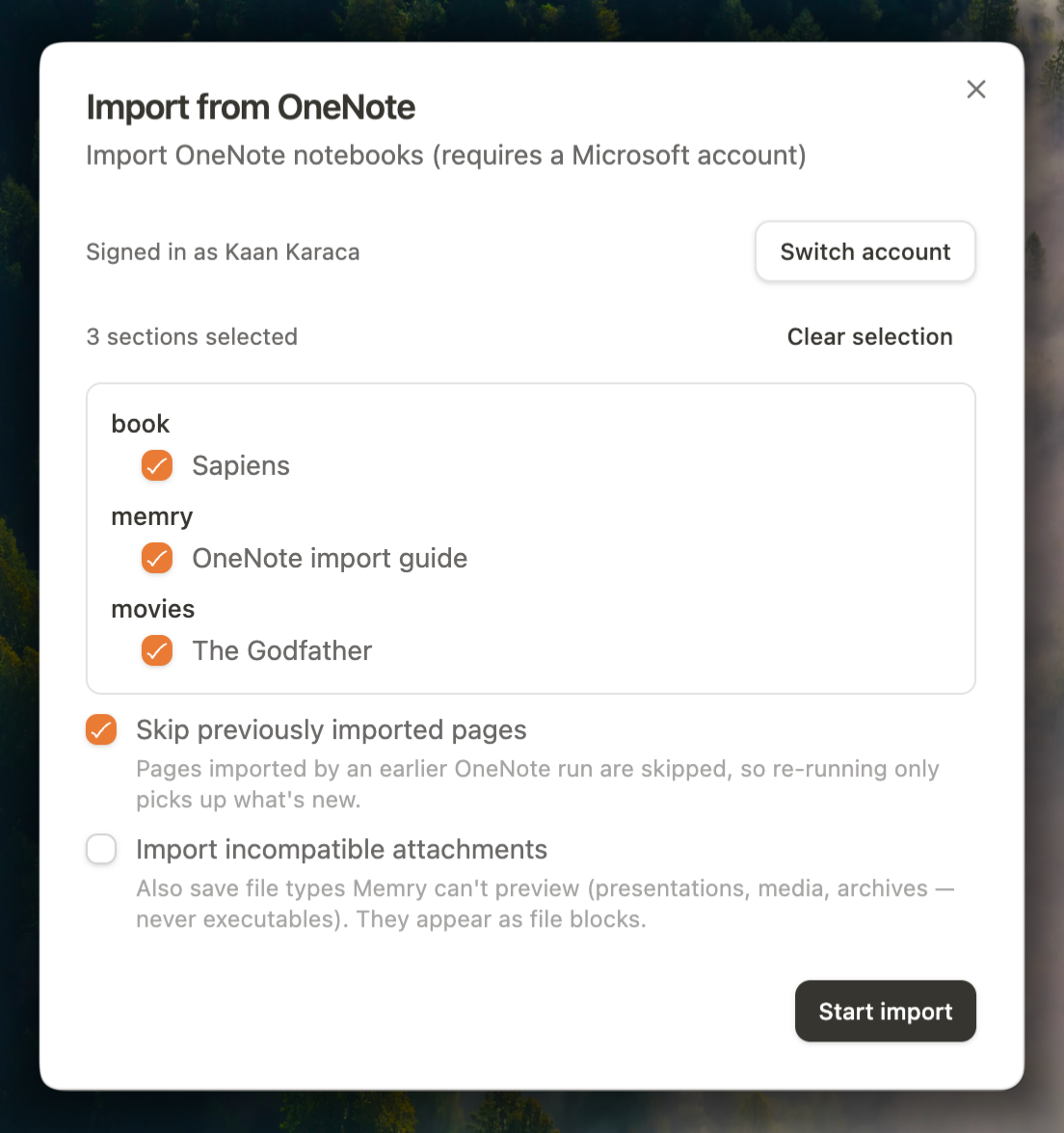
Pages land as one note each under OneNote/<notebook>/<section group…>/<section>/, and subpages nest in a folder named after their parent page. Created/modified timestamps carry over.
What converts:
| OneNote content | Becomes |
|---|---|
| Page HTML | Markdown (headings, lists — nested included — tables, quotes) |
Note tags (Important, …) | Note tags in frontmatter (: becomes -) |
| To-do tags | Markdown task checkboxes (- [ ] / - [x]) |
| Bold/italic/strike/highlight styling | **bold**, *italic*, ~~strike~~, ==highlight== |
| Code (Consolas runs) | Inline code or fenced code blocks |
| Math (MathML) | Inline LaTeX ($…$) |
| Handwriting / drawings | An SVG attachment embedded at the end of the note |
| Images (incl. pasted) | Vault attachments (full-resolution, OCR alt text kept) |
| File attachments | Vault attachments shown as clickable file blocks |
| Linked (non-OneNote) images | Left as plain external links — never downloaded with your account |
| Online videos | Markdown links |
| OneNote-internal links | Unwrapped to their text (they would point at the local OneNote install) |
Options:
- Sections — pick notebooks/section groups/sections in the dialog; everything is selected by default.
- Skip previously imported pages (default on) — imported page ids are remembered per vault (
.memry/import/onenote.json), so re-running an import only picks up new pages. Turn it off to re-import everything. - Import incompatible attachments (default off) — also saves file types Memry can't embed natively (presentations, media, archives, and image formats the editor can't render such as EMF/TIFF clipboard art). They render as file blocks and open externally. Executables are never imported, even with this on.
Limitations: attachments are capped at 100 MB each (Memry's vault attachment limit); larger files are skipped and counted. Microsoft throttles the OneNote API — large imports may pause for up to a minute at a time and continue automatically.